We have setup a new system for reserving devices on our Loans service, booking equipment in our Makerspace and signing up to our wide array of Trainings. The site uses Single Sign-On (SSO), so your regular university login will give you access to our services.
(If you are alumni wishing to access the makerspace equipment please contact us directly via (ucreate@ed.ac.uk) so we can setup an account for you.)
Logging In
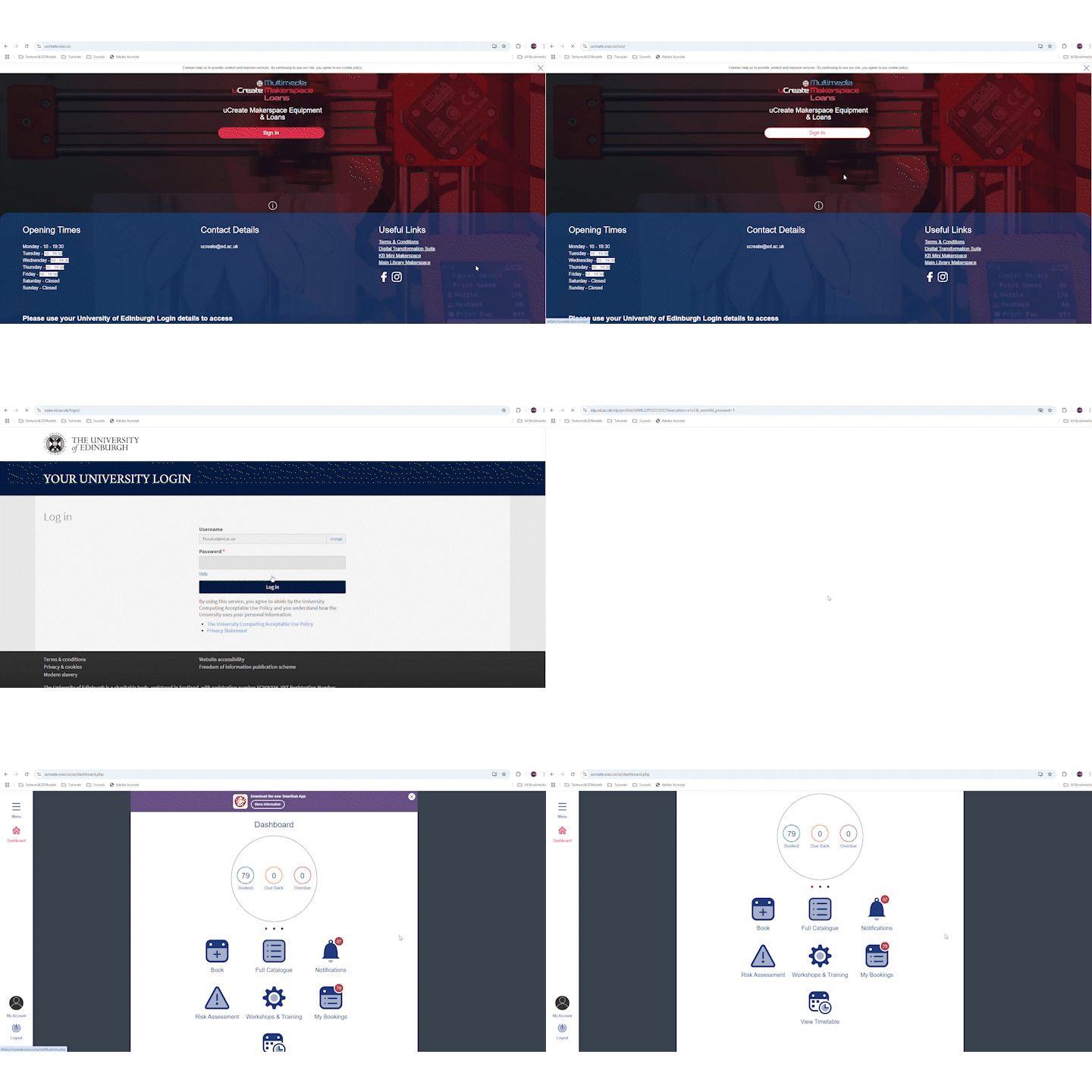
Navigating to ucreate.siso.co bring you to our sign in page where you can click sign in and use your university login details.
If this is your first time signing into our site, you will need to accept our Terms & Conditions before you can accept and proceed.
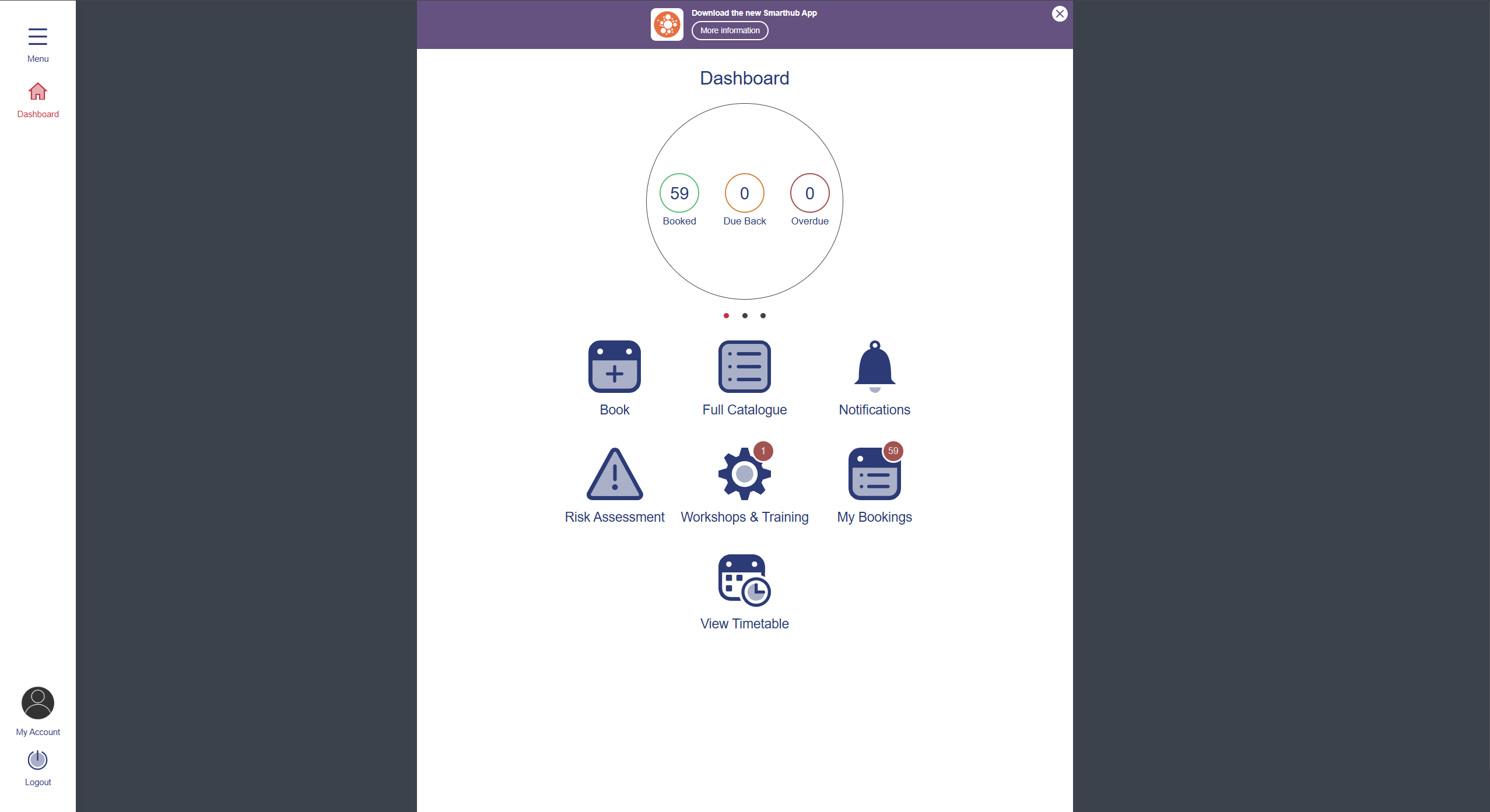
You will then be taken to the landing page from which you have a variety of options.
The three main items to start with are:

Book
Where you can book both our specialist loans equipment and the spaces and equipment in our makerspaces.

Workshops & Trainings
Where you can book all of our inductions and trainings.

My Bookings
Where you can view and amend your current bookings.
Book Items from our Loans Service
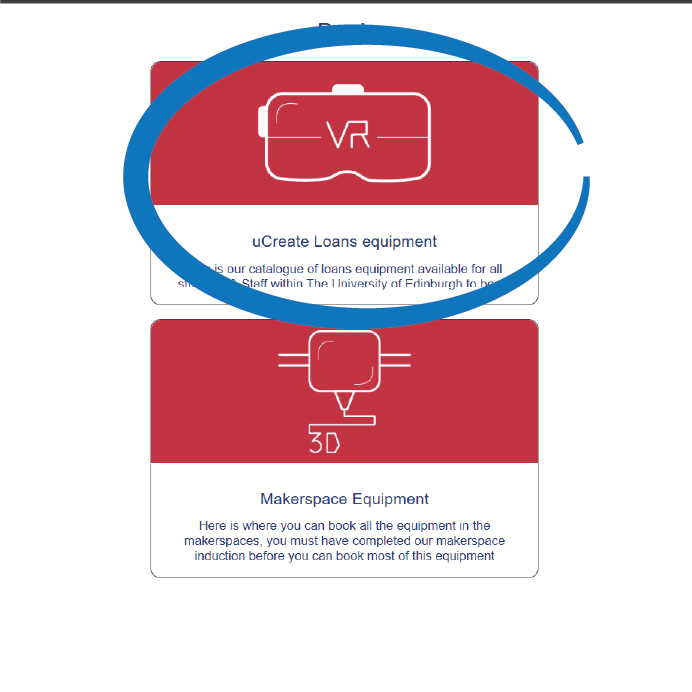
Select uCreate Loans Equipment
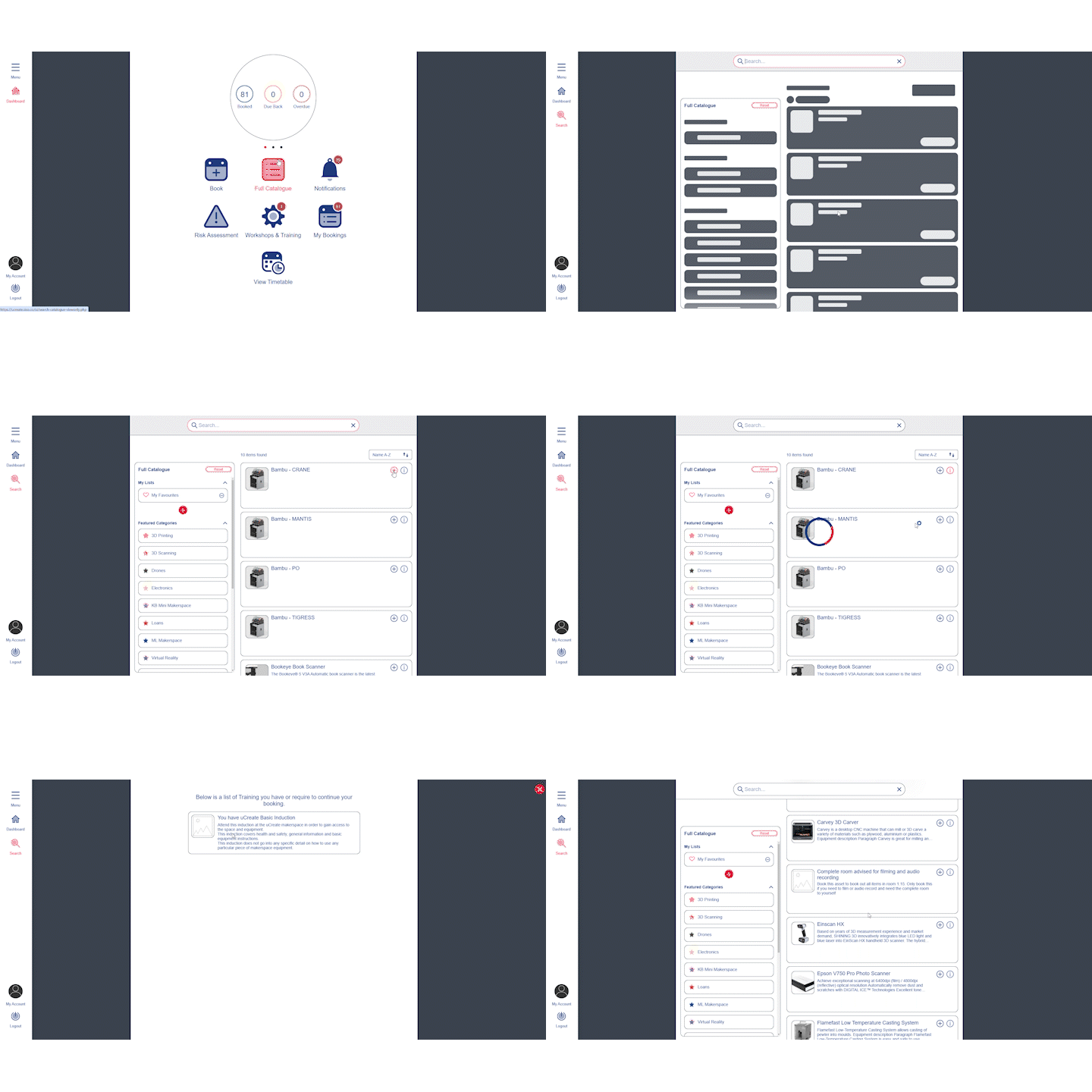
Once you have clicked on Book from the main landing page, select uCreate Loans Equipment to get the full catalogue of items that can be loaned.
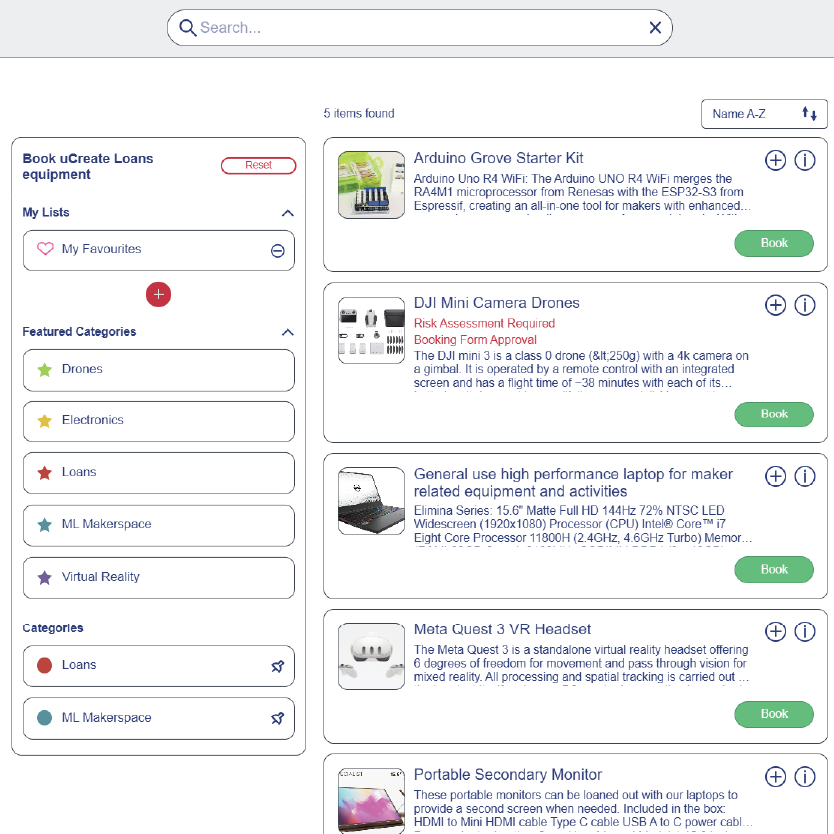
Item Selection
Look through our catalogue to find the items you need. On the top right of each listed item is an i which will give more information on the item and a + symbol which will allow you to add that items to your favourite list. On the left side is a list of categories to help filter out the equipment you are looking for and the option to build custom and favourites lists specific to your wishes. Once you have found what you are looking for press book. A screen will come up detailing the allowed quantity and the booking length restrictions, click continue.
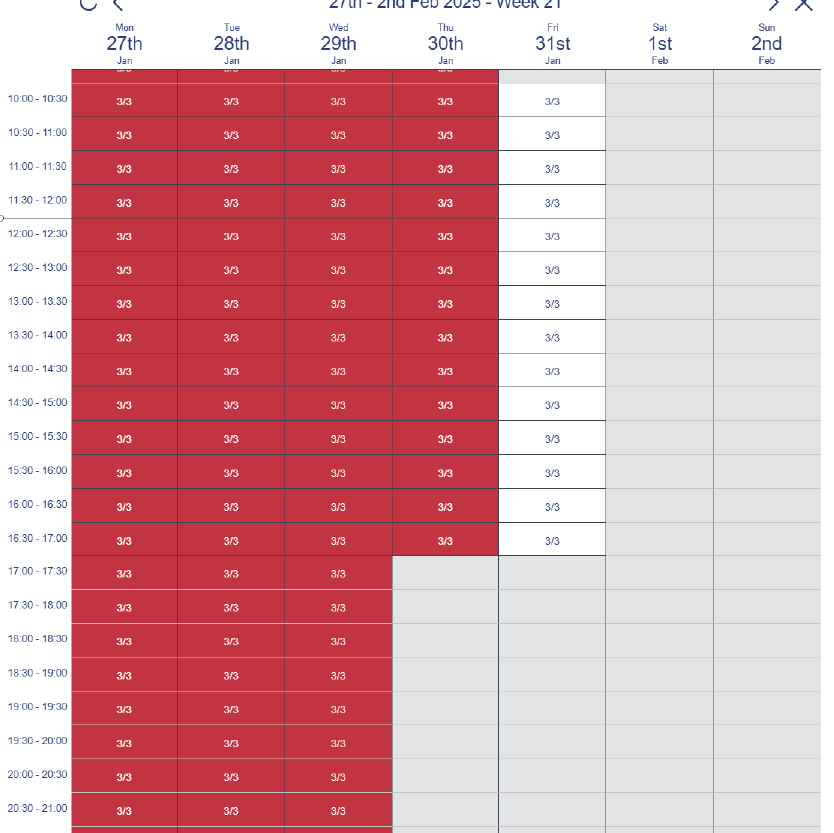
Booking Times Selection
You can now move on to picking your collection and return times.
Times greyed out are when our loans desk is closed
Times in light red are when the items are unavailable due to being out on loan or in for servicing.
Select available slots for your start time and end time
This can cover the greyed out times but not light red times and cannot exceed the maximum length of loan for the item.
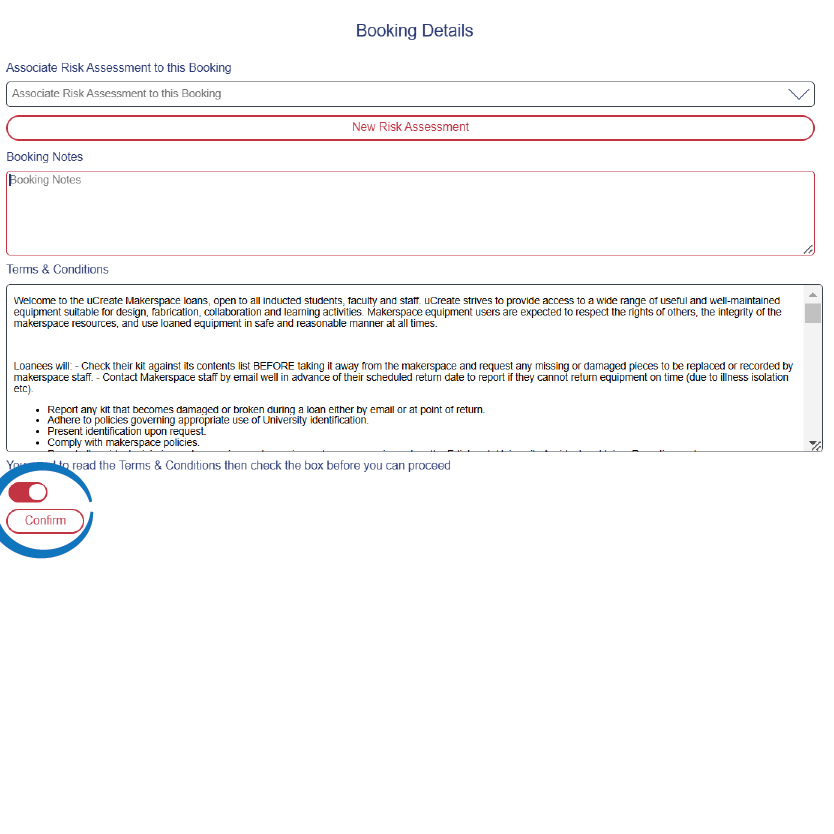
Confirmation Page
Lastly, check to make sure everything is ok and read through our terms and conditions, if you agree with them, click the slider on the lower left and then press Confirm
Booking Equipment in the Makerspace
In order to book equipment in the makerspace you need to have completed an induction and in some cases additional training to go with the induction, details on how and where to book the inductions can be found further down this page and the Induction calendar can be found here.
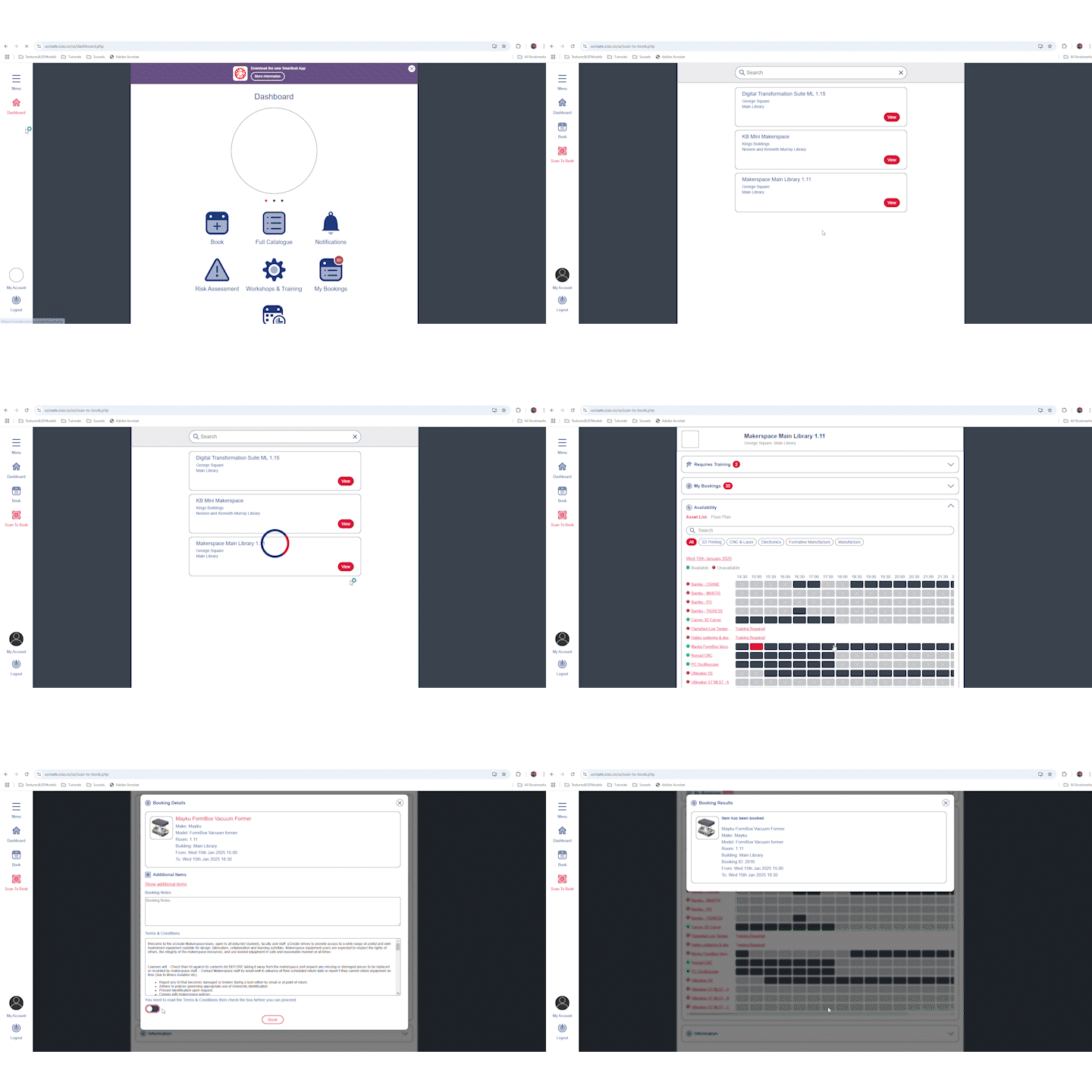
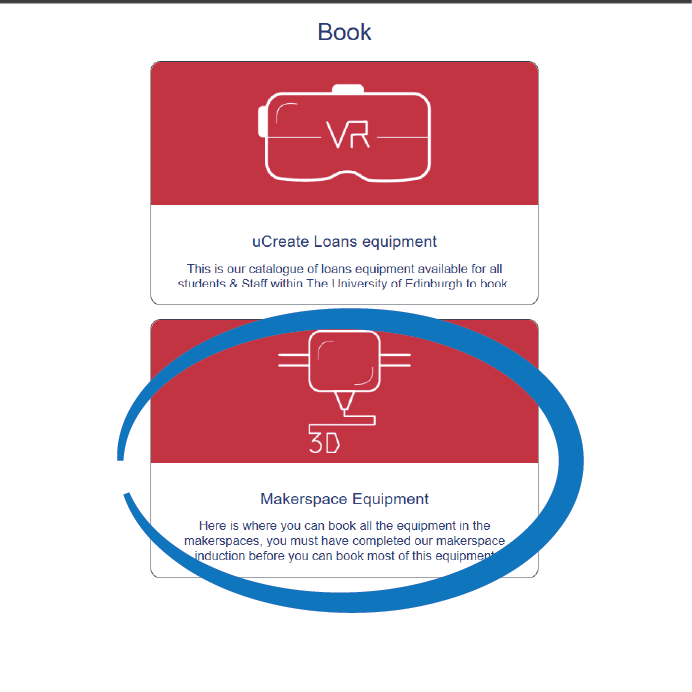
Select Makerspace Equipment
In the book menu, select Makerspace Equipment.
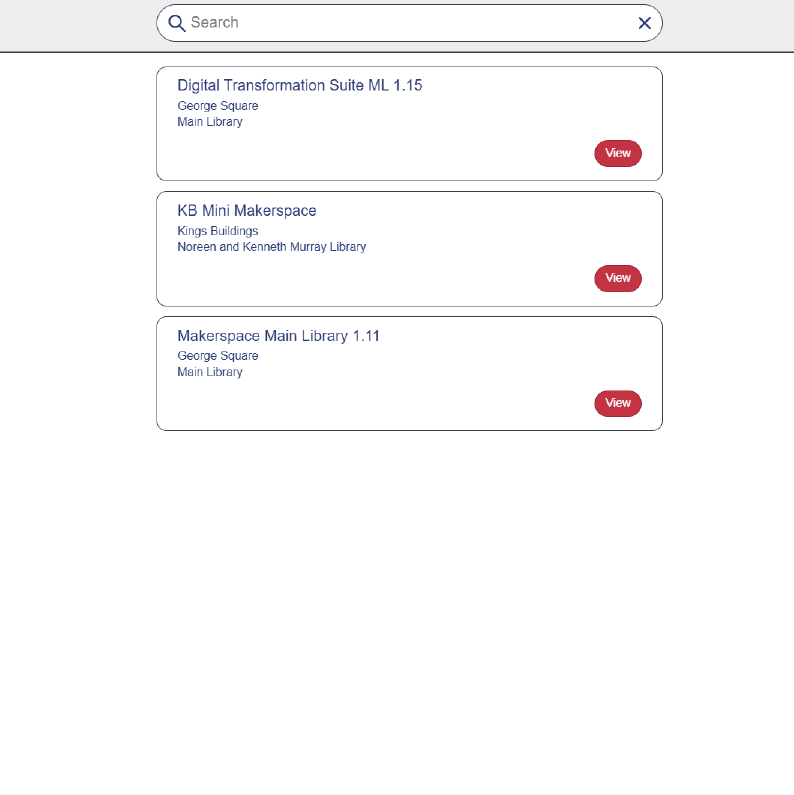
Pick Your Location
Then select where the equipment you would like to book is. For instance the Green Screen is in the Digital Transformation Suite or the Bambu Labs 3D Printers are in the Makerspace Main Library
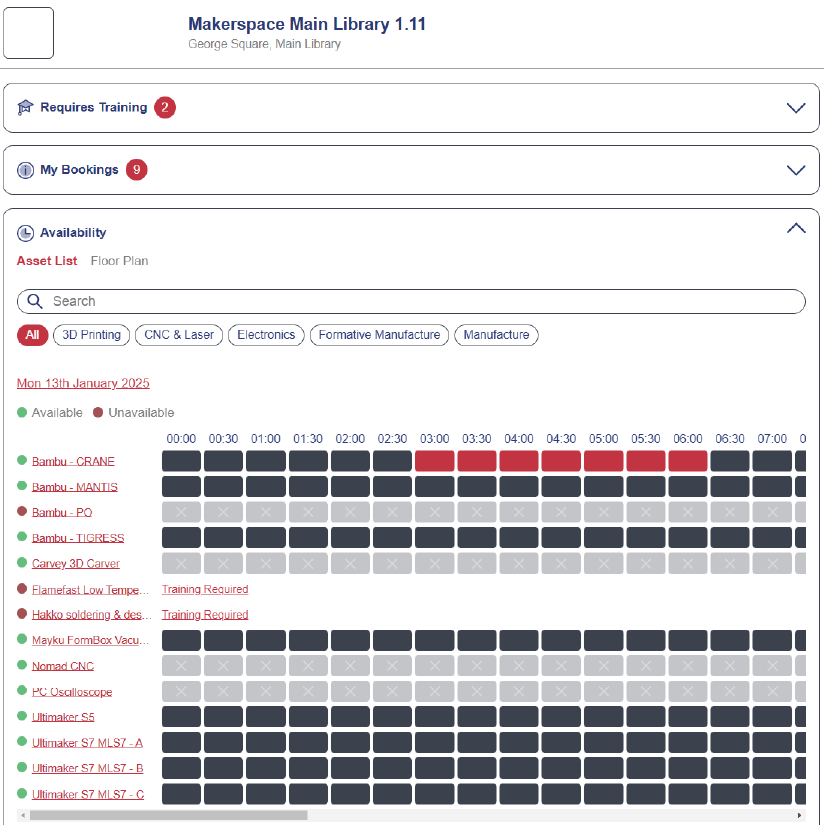
Select the Equipment & Time
You will then find all the equipment in that location listed and its availability. Light grey blocks with an X in it means the item is unavailable at that time. Dark Blue means it is free and Red is your current selection. Some items may say 'Training Required' next to them, this means you need to complete additional training in order to book them clicking on training required will take you to all the trainings currently available for that equipment.
Select your your start time and finish time
(don't try and click on all the blocks for the length of your booking, just the start and finish ones)
Then click Book and the bottom of the screen.
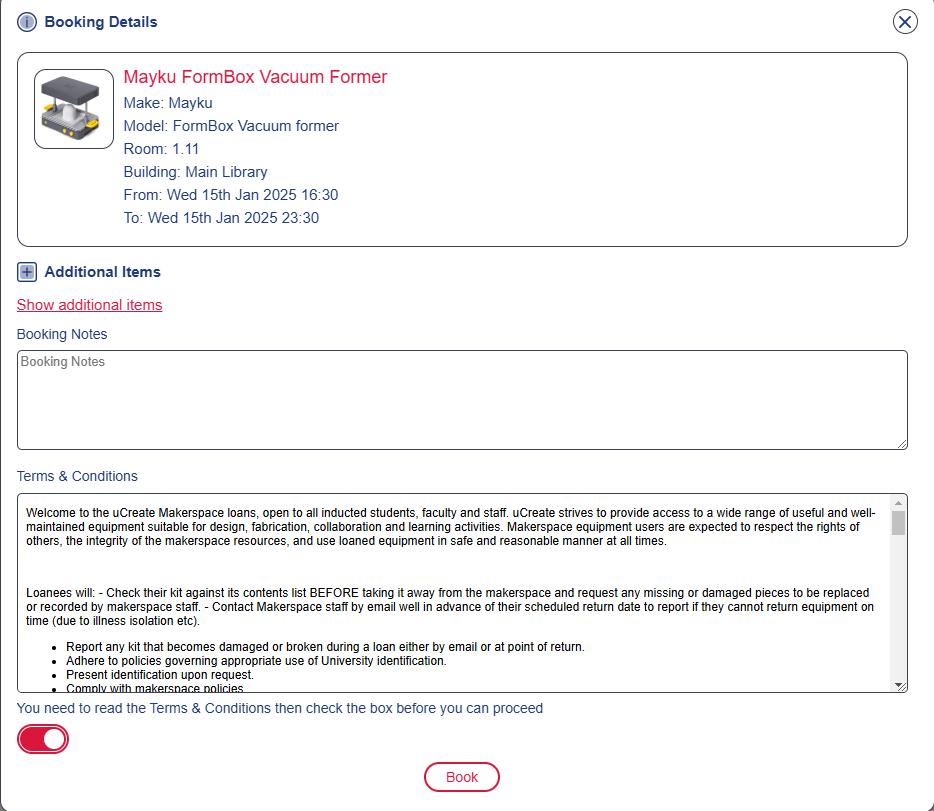
Confirm Your Booking
You should then see a pop up window where you can read our terms and conditions and if you agree with them check the toggle at the bottom left of the window and click Book,
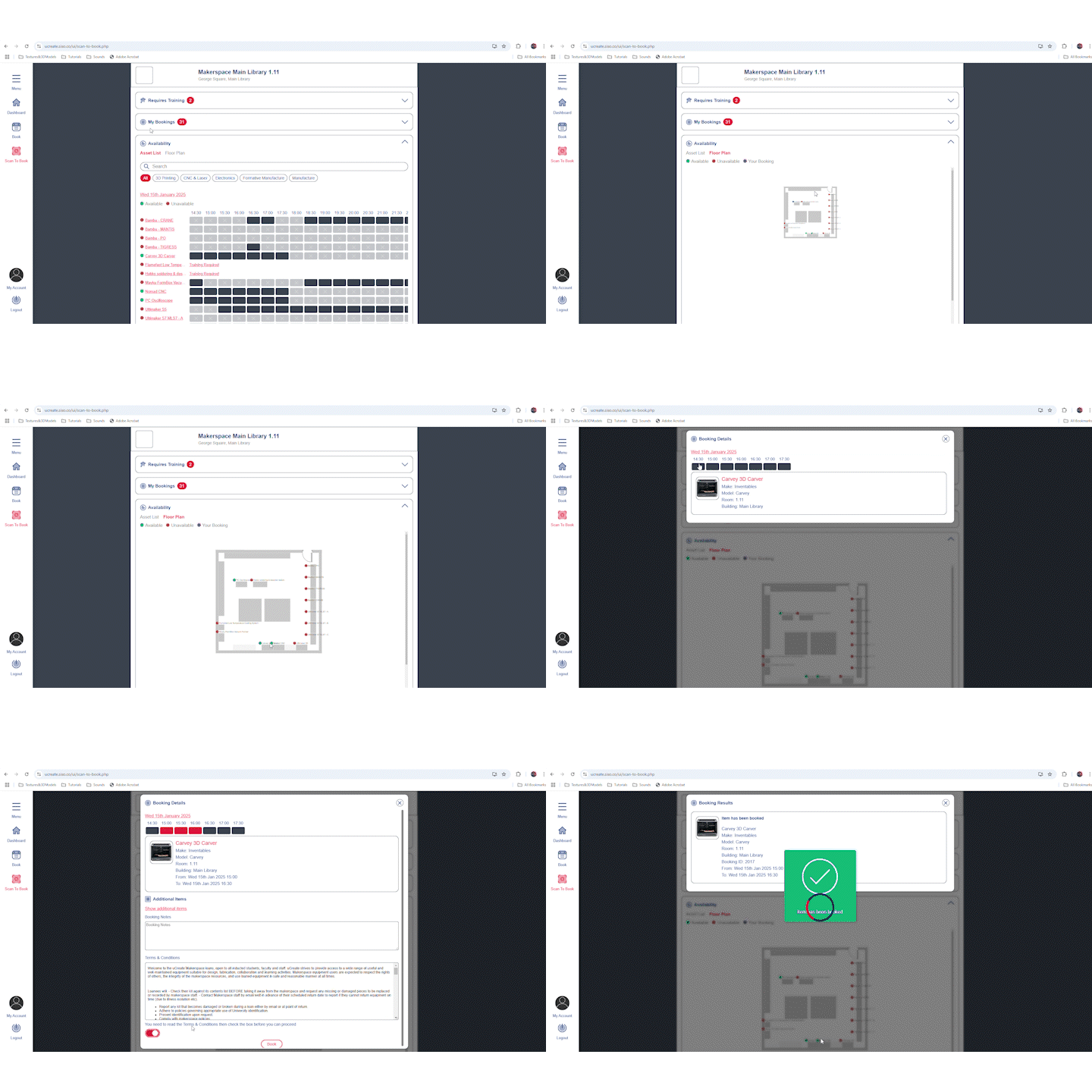
You can also book equipment based on its physical location in the room you have selected. Towards the top, on the left, in the Availability window, there is an option called floor plan, this will give you a visual floor plan of the room and all the equipment mapped out on the floor plan. Selecting an object within the plan will allow you to see its availability and then book it.
Accessing Inductions and Trainings
uCreate offers a huge range of trainings to compliment our diverse array of equipment. They are all run in person and in small groups by our fantastic team of enthusiastic technicians. Most of the trainings should only be completed after you have done our basic induction.
Booking Calendar
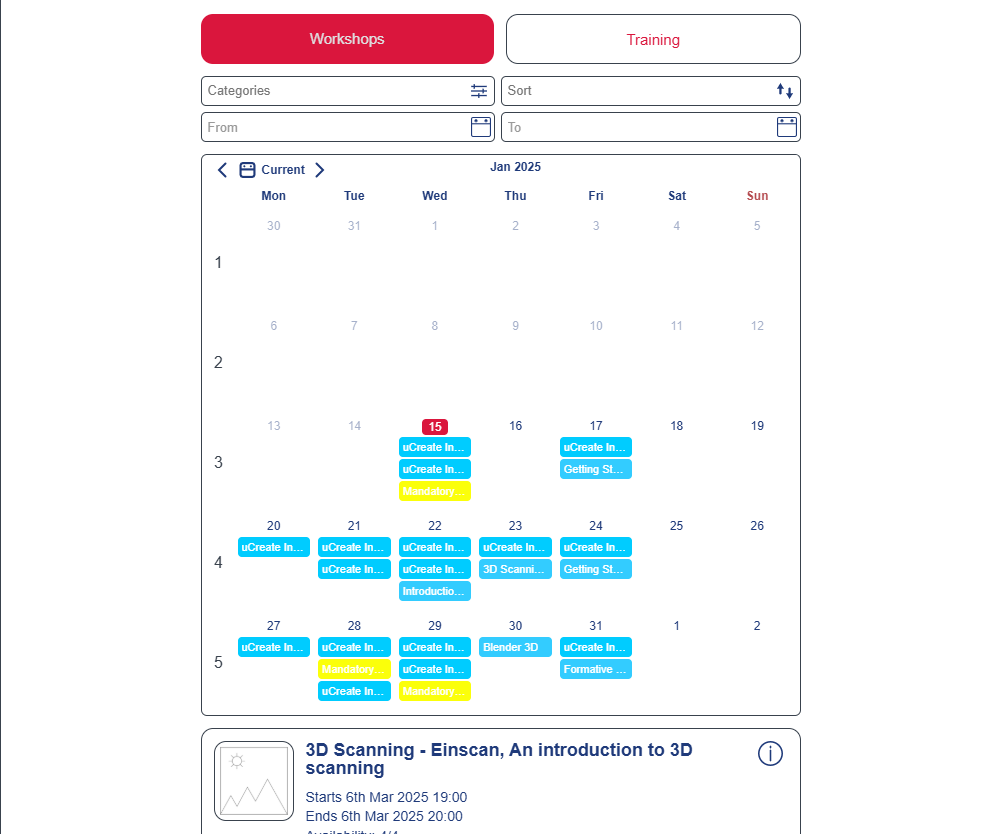
Once you have opened up the Workshops & Training tab, you will see the calendar for all of our trainings selecting one of the trainings will show you if there there are still spaces on it and also show you other dates that training is running. Selecting subscribe books you onto that training or induction session.
View by Training Type
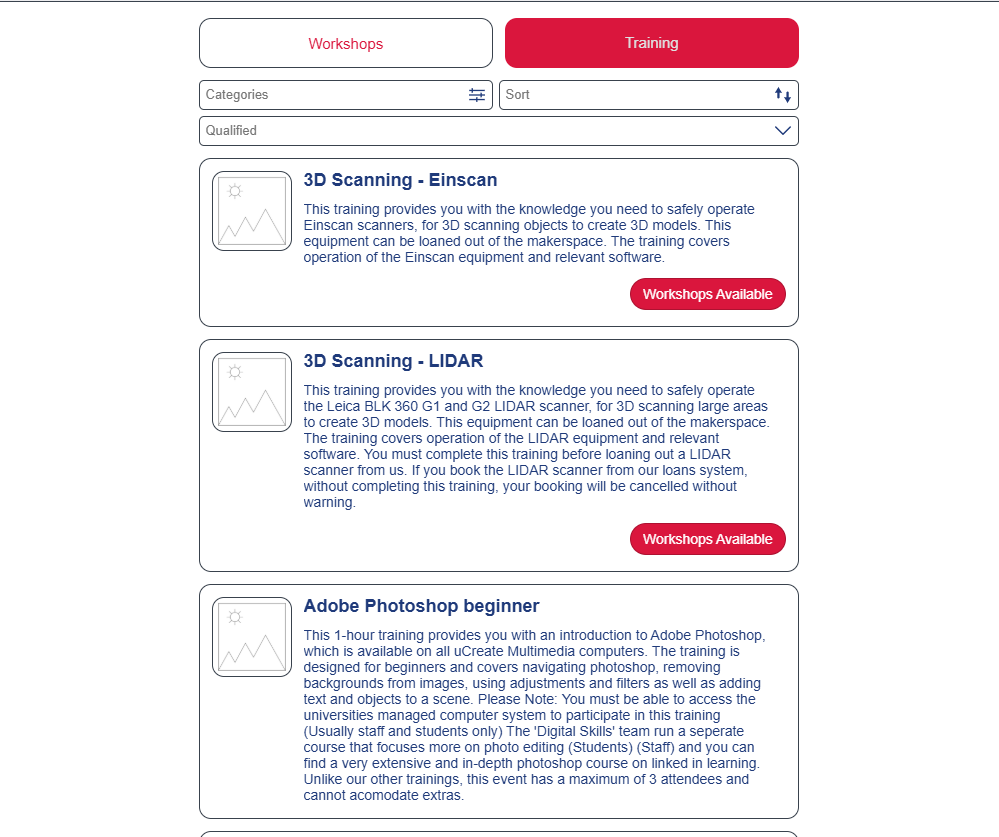
Alternatively you can also browse the training types by selecting 'Training' at the top right of the window, this will list all of the different types of training we run with a brief description to accompany them, where there are trainings available for you to book onto, there will be a 'workshops available button'.
My Bookings
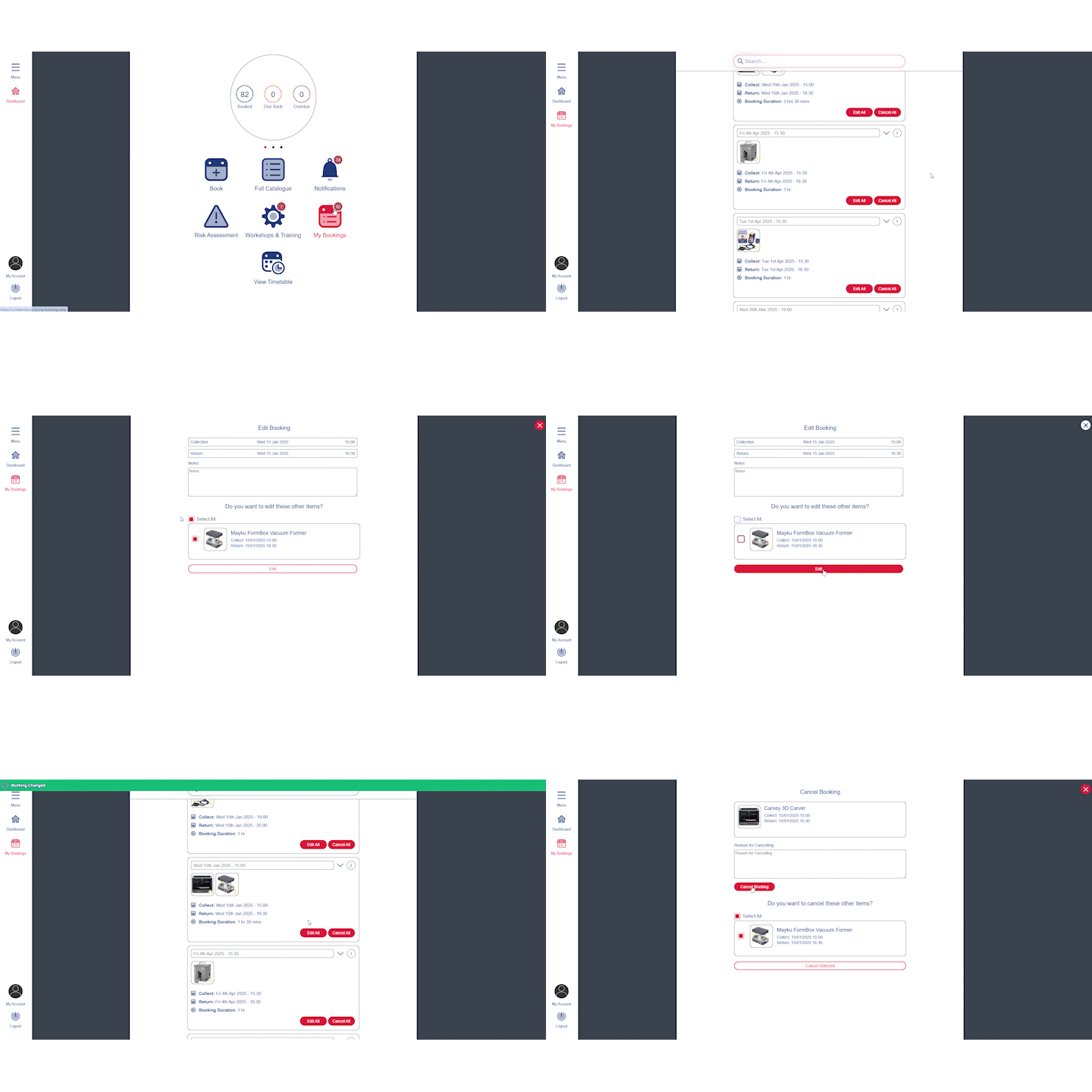
The My Bookings tab allows you to see all of your current bookings and cancel them if you no longer need them.
We do ask that everyone cancels their bookings if they will not be using them as we are a very popular service with a limited amount of resources.
Those are the key parts of your uCreate Portal, there are many more things you can do within in, you can add a profile photo or create custom lists of your favourite items to book making it easier and quicker when you need to reserve them.